


INSTRUCTIONS. Version. Action.
______________________________________________________________________________________________________________________________________________
The release of a new version. Instructions for use. An action that results in a change.
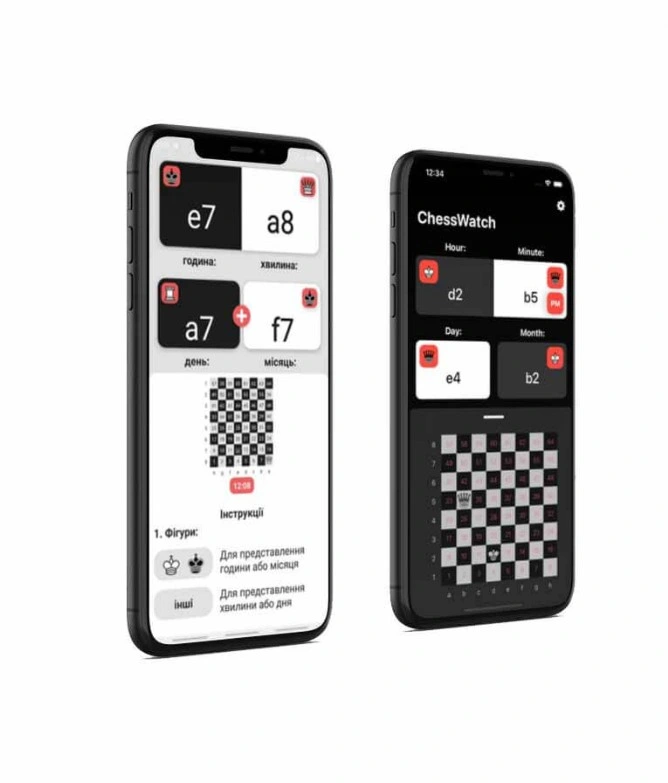
Android & iOS
____________________
two OS + tablet
ChessWatch chess simulator works on two operating systems: Android and iOS.
You can also use the chess trainer on your tablet.
Click on the picture
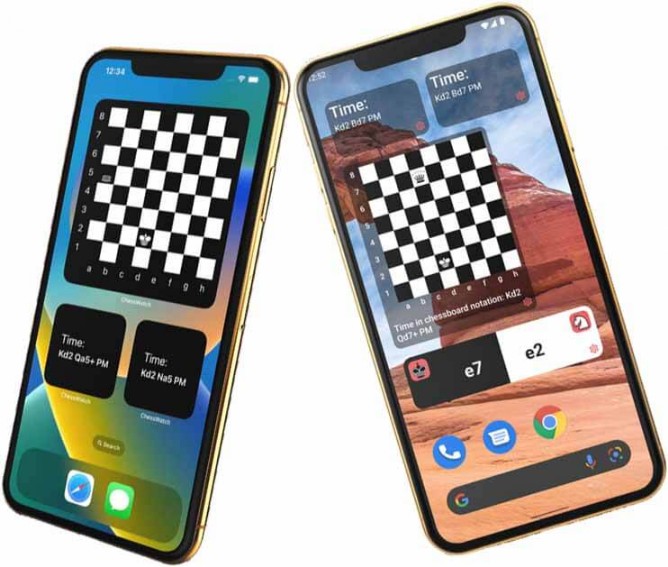
Widget: new forms
____________________
change widgets
Use new forms of chess simulator widgets on your gadgets, whether it's a chessboard with a position or just chess notation.
Click on the picture
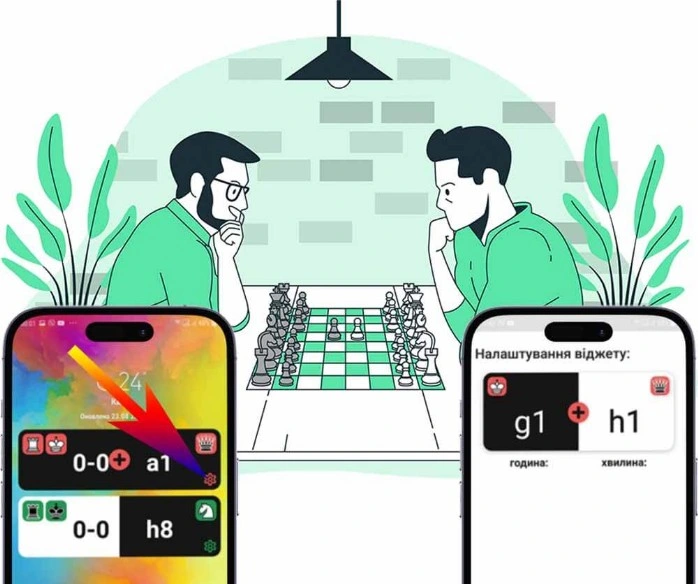
Widget
____________________
for the white side
for the black side
Instead of a watch, you can install one widget on your smartphone to display the notation for the white side or for the black side (determined by the color of the king), or two widgets - one for the white side and the other for the black side, respectively.
The "settings" button allows you to change both the shape and its color.
After achieving results using one widget, we recommend installing two, which complicates the recalculation and develops a symmetrical view of the chessboard and position.
Click on the picture
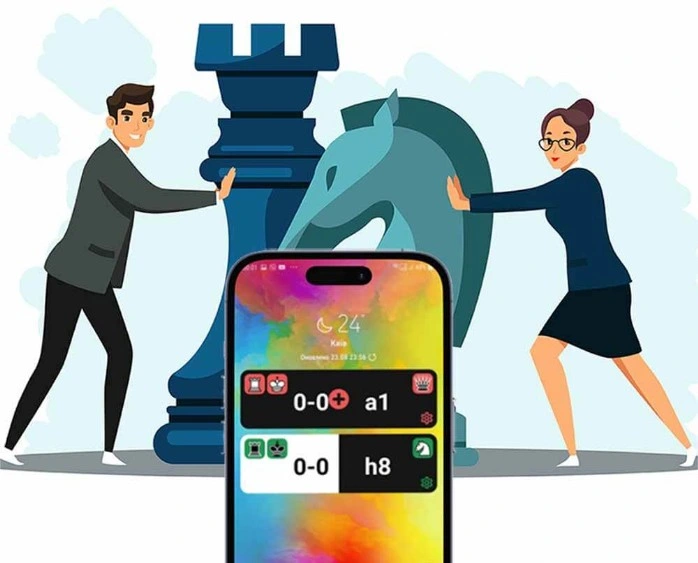
Widget - Application
____________________
tap the widget

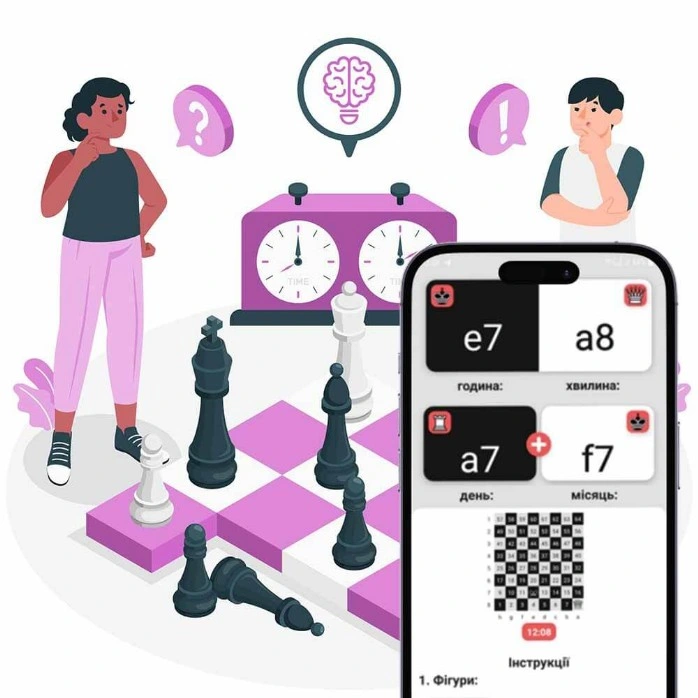
The app opens, the time and date are displayed in algebraic notation, you can view the current position and, if necessary, see the current time.
Read the current instructions.
By clicking on the shapes, you can change the shape and its color.
Application: whiteboard
____________________
swipe upwards

In the Application: the chessboard with the current position is enlarged to the full screen, so that (if necessary, to keep track of time) you can find out the number of cells where the pieces are located, and interpret the current time accordingly.
Below the board, by scrolling down, you can read the current instructions.
Click on the picture